Appearance
15-minute quickstart
Do this with an admin role.
See Roles.
This path configures the dashboard.
Reports and Exposures appear after Status is Active and a scan has produced rows.
After you sign in, the Dashboard Get started checklist shows the same steps in the app.
Prerequisites
- A dashboard URL
- A sign-in account. Sign-in uses PropelAuth. See Sign in.
- Your primary hostname, such as
example.com - A short list of important vendor hostnames
- One webhook URL if you want alerts (Discord, Microsoft Teams, Google Chat, SIEM, CTI, or Other)
Timed path
| Minutes | Action | Success check |
|---|---|---|
| 0–2 | Sign in. Confirm the sidebar footer shows API Status Connected. | Dashboard loads. Get started is visible when setup is incomplete. |
| 2–6 | Open Configurations → Domain / keyword. Add your primary domain and keywords. | A new row exists. Status is Pending. |
| 6–10 | Open Vendors. Add critical vendors. Optional: add integrations. | Vendor rows exist. Status is Pending. |
| 10–13 | Open Users. Add analysts. | Each person has an email and a role. |
| 13–15 | Open Alerting. Add one destination and one rule. | One enabled destination. One enabled rule. |
Detail: Configurations, Users, Alerting.
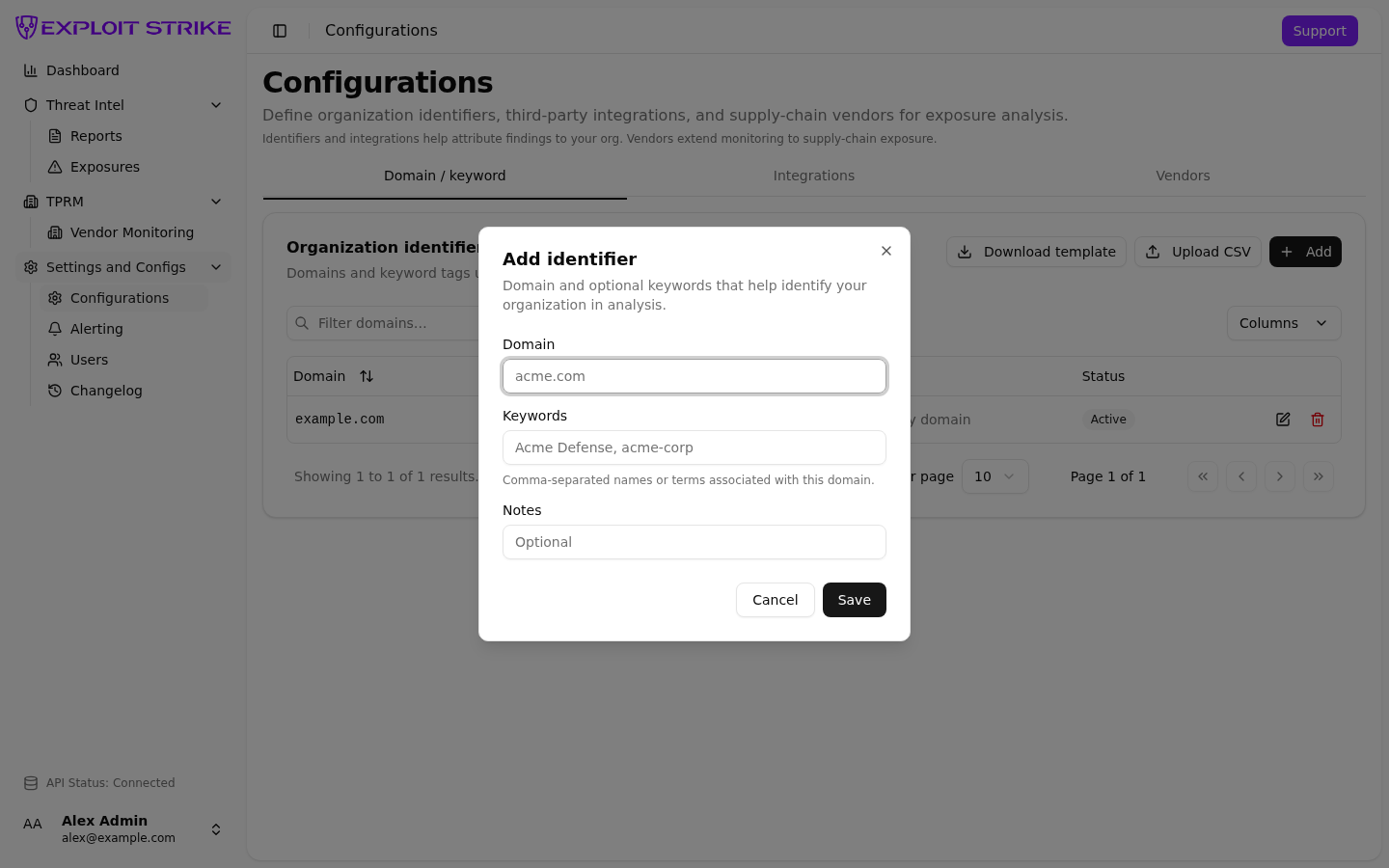
The Add identifier dialog. Required field: Domain. Keywords are comma-separated. Notes are optional. Select Save.
What Pending means
Pending is Exploit Strike review.
Review confirms the domain or keyword belongs to this client and is not associated with another organization.
| Status | What it means | What you do |
|---|---|---|
| Pending | Exploit Strike is reviewing the term. | Wait for Exploit Strike review. |
| Active | Review finished. Monitoring can use the term. | Open Reports and Exposures. |
If rows stay Pending, send email to support@exploitstrike.com.
Home also shows Pending and Active counts. See Dashboard home.
After 15 minutes
- Confirm API Status stays Connected.
- When a domain row is Active, open Reports and Exposures.
- If Status is Active and both lists stay empty, send email to
support@exploitstrike.com.
Then read How Exploit Shield works and the investigation playbook.