Appearance
Configurations
Path: /configs
This page sets what Exploit Shield monitors for your organization.
- Domain / keyword identifies your org.
- Integrations identify your SaaS tenants.
- Vendors extend monitoring to your supply chain.
An admin can add, edit, and delete rows.
Other roles see View only.
For the first-time order, see the 15-minute quickstart.
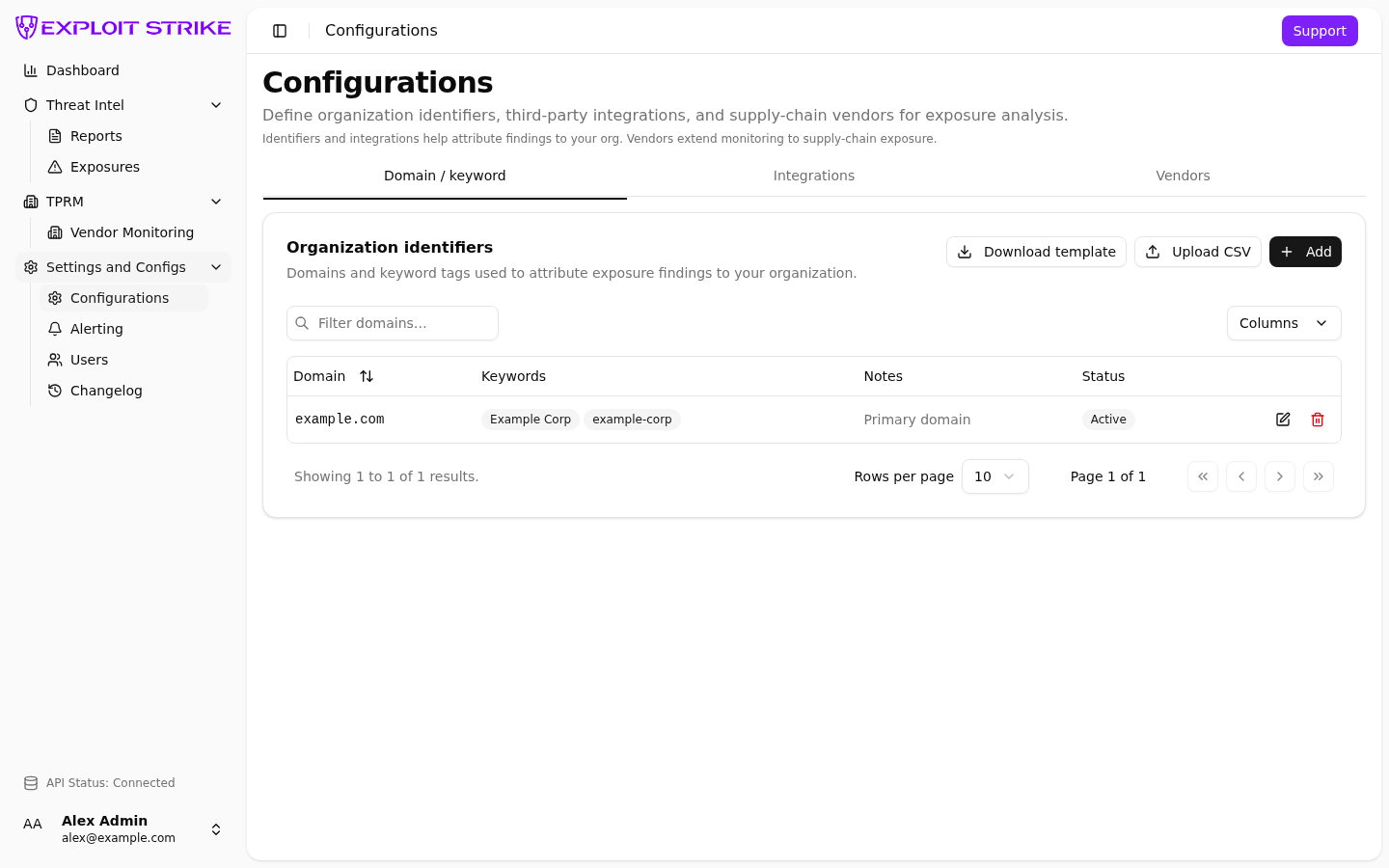
Organization identifiers. Status is Pending or Active. Add, Download template, and Upload CSV are in the header.
Status
Each row shows Status:
| Status | Meaning |
|---|---|
| Pending | Exploit Strike review. Review confirms the term belongs to this client and is not associated with another organization. |
| Active | Review finished. Monitoring can use the term. |
Status becomes Active after Exploit Strike review.
Tabs
| Tab | URL | What you add |
|---|---|---|
| Domain / keyword | /configs?tab=domain | Org hostnames and keywords |
| Integrations | /configs?tab=integrations | SaaS match rules |
| Vendors | /configs?tab=vendors | Supply-chain vendors |
Use CSV import on any tab.
Domain / keyword
The card title is Organization identifiers.
Add one domain
- Open
/configs?tab=domain. - Select Add.
- Enter Domain. Use a hostname such as
example.com. - Enter Keywords. Separate terms with commas, such as
Example Corp, example-corp. - Enter Notes if you need a reminder. Notes are optional.
- Select Save.
The row appears with Status Pending.
A valid domain is required. The form rejects an empty or invalid hostname.
Edit or remove
- Select the edit action on the row.
- Change domain, keywords, or notes.
- Select Save.
To remove a row, select the delete action. Confirm Remove.
Remove deletes the identifier and its keyword rows from monitoring.
Filter
Use Filter domains… to search the table.
Empty state
If there are no identifiers, add a domain or upload a CSV.
Select Add identifier if you are an admin.
Integrations
Tab: integrations
URL: /configs?tab=integrations
The card title is Third-party integrations.
Add a SaaS match so Exploit Shield can recognize your workspace in a leak.
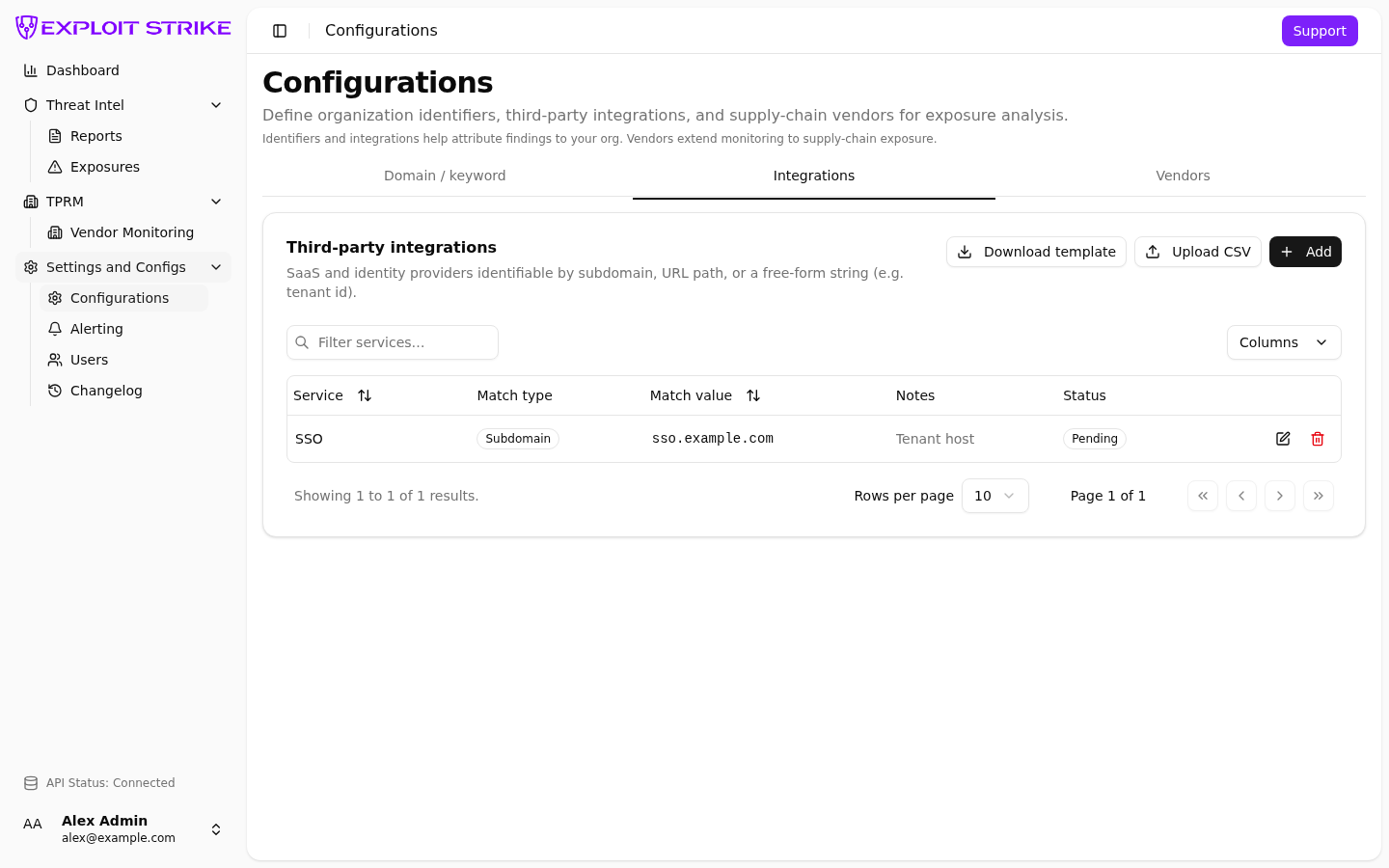
- Select Add.
- Enter Service name.
- Select Match via:
subdomain,path, orstring. - Enter the match value. A path must start with
/. - Select Save.
The row appears with Status Pending.
Vendors
The card title is Supply-chain vendors.
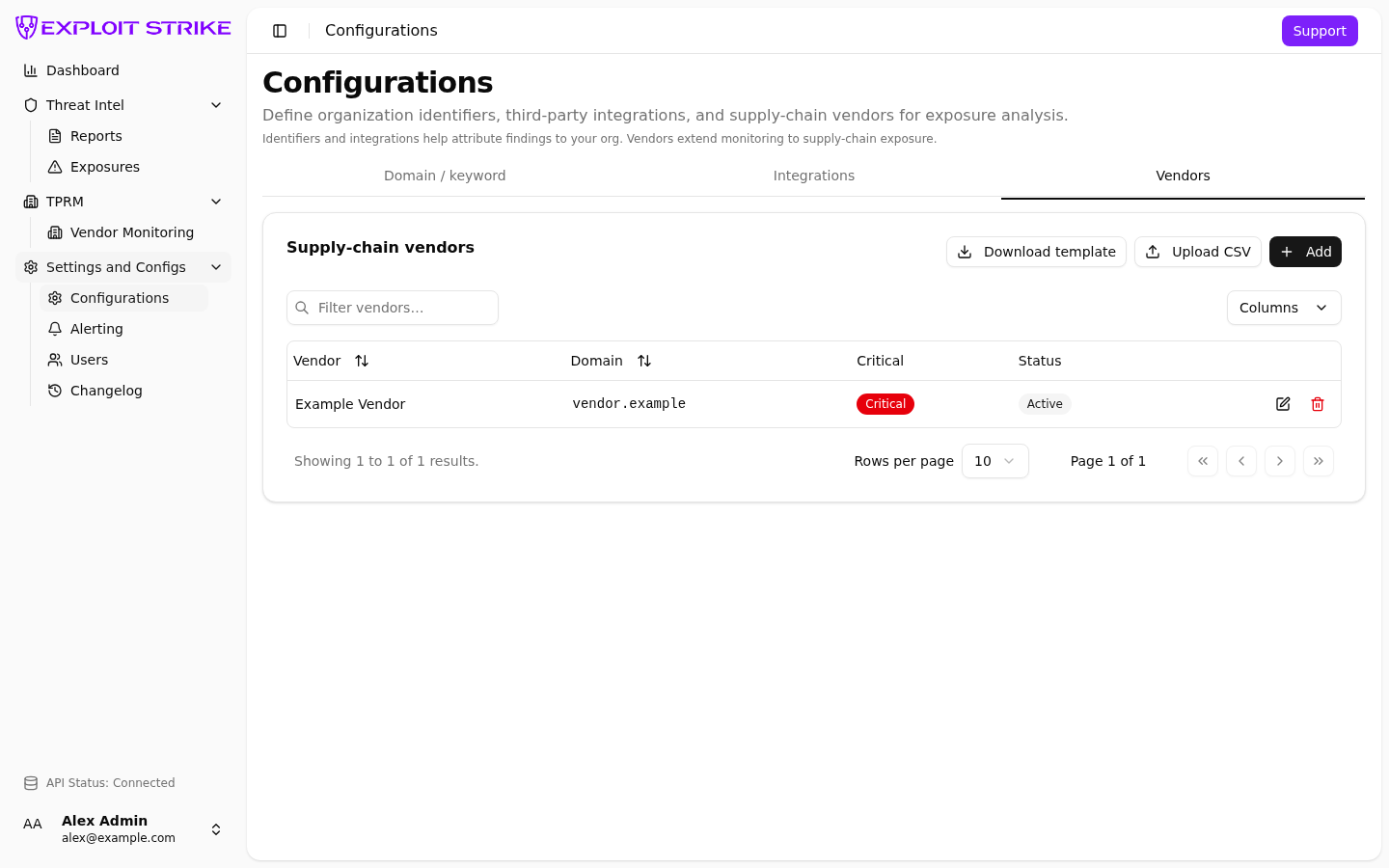
Add from the catalog
If the add form offers a search box:
- Open
/configs?tab=vendors. - Select Add.
- Type at least two characters in Name.
- Select a result. The form fills name and primary domain.
- Set Is critical if this vendor matters most.
- Select Save.
If the vendor is not in the list, select Not listed? Enter manually.
Add manually
- Enter Vendor name. This field is required.
- Enter Domain, such as
vendor.example. - Set Is critical when the vendor is in your first onboard set.
- Select Save.
The row appears with Status Pending.
Edit
You can change Is critical only.
To change vendor name or domain, Remove the row. Then Add the vendor again.
Critical vendors
Start with a primary domain and your most important vendors.
Mark those rows Is critical.
After you save
The new row stays Pending until Exploit Strike review finishes.
When Status is Active, monitoring can use it.
When Status is Active, open Reports and Exposures.